Armored Blox PC & Mobile Controls
Make boost, camera, and fire feel natural on every device.
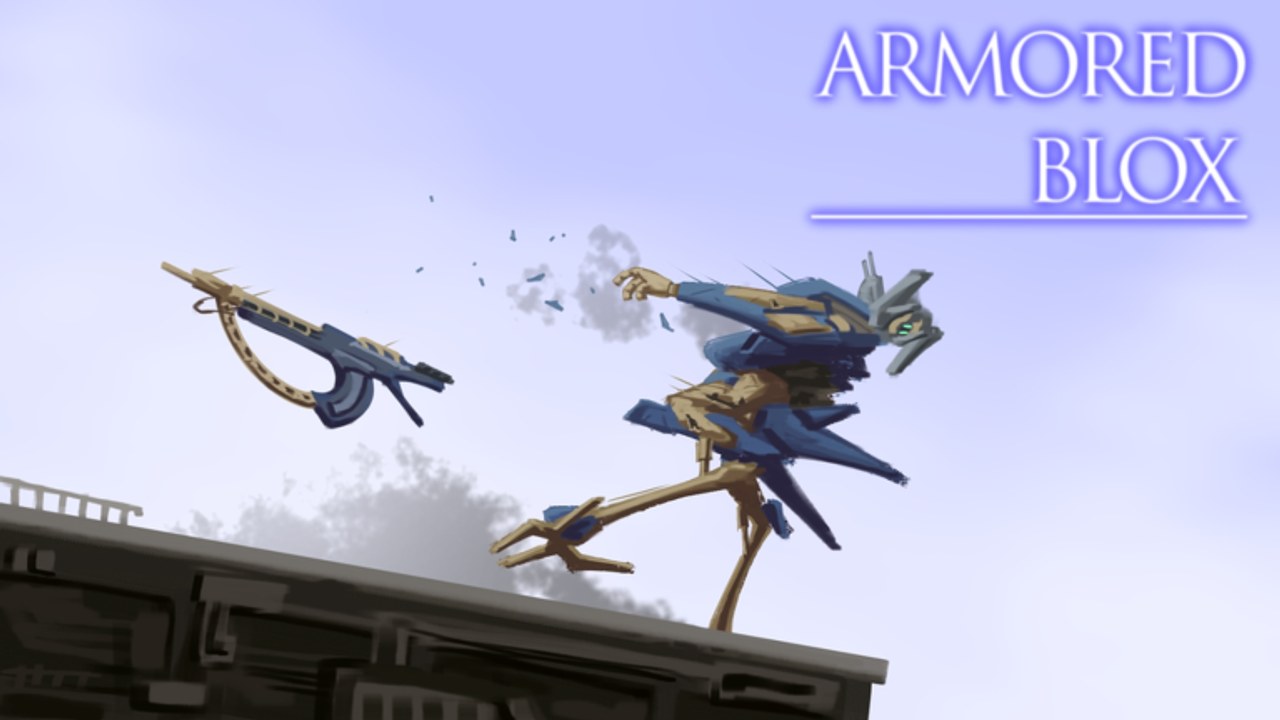
Mastering controls in Armored Blox matters as much as your frame choice. This guide covers PC and mobile input ideas, camera discipline, boost management at the finger level, and custom mobile button layouts — a feature the community specifically calls out for this 48devs BETA. Exact key labels can shift between patches; treat this as a principles manual you re-check after updates on the Updates Hub.
Control goals for mech PvP
A good control scheme lets you:
- Boost and turn without losing the enemy silhouette
- Fire while adjusting camera
- Stop boosting on purpose (not only when empty)
- Swap attention between your partner and the threat pair in 2v2
- Play for thirty minutes without hand cramps
If your layout fails any of those, fix inputs before buying another weapon. Pair this page with Getting Started and Combat.
PC fundamentals
On keyboard and mouse (or controller via Roblox):
- Camera should be fast enough to track light ACs but not so fast you seasick yourself.
- Boost deserves a comfortable hold key — you will tap-release constantly.
- Fire and aim must not fight your strafe hand.
- If a hard lock / soft lock assist exists in your build of the BETA, learn what it does in a calm match before ranked. Do not discover lock behavior mid-commit.
Practice drill (five minutes):
- Strafe figure-eights while keeping camera on a distant object.
- Boost in, release early, fire a short burst, boost out.
- Repeat while intentionally leaving 20% boost in reserve.
That reserve habit wins more fights than a new rifle.
Controller notes (console via Roblox)
If you play on a gamepad through Roblox console support:
- Prefer default face-button boost if remapping is limited.
- Lower deadzones carefully — mech tracking needs fine aim.
- Use headset callouts with your duo; gamepad players often lose text-chat races.
Watch how high-level pads manage camera in community videos, then adapt — do not mirror PC claw grips that hurt your hands.
Mobile controls and custom layouts
Armored Blox mobile support is a real advantage for a mech title. Community notes highlight custom mobile button layouts. Use them.
Suggested layout principles:
| Element | Placement idea |
|---|---|
| Move stick | Lower left, sized for your thumb |
| Camera drag zone | Large right area without overlapping fire |
| Boost | Easy hold with left or right thumb without covering fire |
| Primary fire | Separate from camera so shots do not flick aim |
| Secondary / ability | Reachable but not accidental |
| Garage / menu | Away from combat cluster |
Common mobile mistakes:
- Fire button sitting under the camera thumb
- Boost tiny and far from the stick (you miss panic escapes)
- UI scaled so large that mid-screen targets hide behind buttons
- Playing vertical in a fight that needs wide camera sweeps — try landscape if available
Deeper performance and heat tips: Mobile tips.
Camera discipline in 2v2
Your eyes need a rotation order:
- Immediate threat on you
- Partner HP / boost state if readable
- Second enemy committing to a flank
- Escape lane
Hard focusing one duel while your partner dies is how “I was winning my 1v1” stories start. Train a quick glance cadence between boost pulses. Callouts from the Players Hub only work if you actually look.
Boost as an input skill
Boost is not a hold-forever sprint key. Think in pulses:
- Short pulse — dodge stagger finishers
- Medium pulse — take space or break missile pressure
- Long pulse — rotate to partner / reset (expensive)
If your finger cannot release reliably, change the bind or mobile button size. Generator choices on Builds cannot save a player who never lets go.
Sensitivity and accessibility
- Raise sensitivity gradually across sessions, not mid-tilt.
- Enable Roblox accessibility options that help you if needed.
- Color customization (when available) can improve silhouette recognition for callouts — not just fashion.
- Take breaks; mech games punish tense shoulders.
After a controls patch
Beta UI and layout systems change. When Patch Notes mention mobile layouts or control tweaks:
- Re-open the layout editor even if “nothing looks different.”
- Re-run the five-minute PC or mobile drill.
- Delay ranked until inputs feel boring again.
Practice plan tied to other guides
| Day | Focus |
|---|---|
| 1 | Layout + camera only |
| 2 | Boost pulses + fire |
| 3 | 2v2 glance cadence |
| 4 | Apply in real matches with Combat goals |
Related reading
Frequently Asked Questions
Quick answers for Armored Blox pilots.
Does Armored Blox support mobile controls?
Yes. Mobile support is available, and custom mobile button layouts are a highlighted quality-of-life feature. Spend time in the layout editor before ranked.
What is the most important bind to get right?
Boost comfort and camera control. If you cannot pulse boost while tracking targets, fix that before optimizing obscure ability keys.
Is there hard lock?
Lock behavior can vary by patch and settings. Test soft or hard lock in a calm match so you understand what assistance you actually have.
Why do I keep flying past enemies?
You are likely holding boost too long. Practice short pulses and early releases, then adjust sensitivity so turns keep up.
Should PC and mobile use the same tactics?
Core 2v2 ideas match, but mobile needs stricter layout hygiene and sometimes simpler kits. See the Mobile tips guide for platform-specific advice.
When should I change sensitivity?
Between sessions, not mid-tilt. Make small changes and re-run a short tracking drill before judging the new value.